

 PKR
PKR 
Introduction: The Power of Smooth WordPress Migration
Migrating a WordPress site can be daunting, especially if you’re concerned about downtime or losing data. However, with the right tool, this process can be streamlined. All-In-One WP Migration has become one of the go-to plugins for WordPress users worldwide, enabling seamless transfers without requiring complex technical skills. At HosterSale, we prioritize hassle-free hosting experiences, and we recommend this tool for effortless migrations.
Why All-In-One WP Migration is a Game-Changer
When you’re ready to move your WordPress site to HosterSale, the All-In-One WP Migration plugin makes this process smooth and efficient. It provides key advantages such as:
- No Technical Expertise Required: The plugin is designed for all users, from beginners to pros.
- Unlimited File Size Options: No more worrying about file size limits, as it handles large sites with ease.
- Full Data Migration: Easily transfer everything—from themes and plugins to databases and media.
Step-by-Step Guide: Using All-In-One WP Migration for HosterSale Hosting
Step 1: Install the Plugin
Start by installing All-In-One WP Migration from your WordPress dashboard. Simply navigate to Plugins > Add New, search for “All-In-One WP Migration,” and install.
[Learn how to add a new plugin in WordPress]
Step 2: Export Your Site
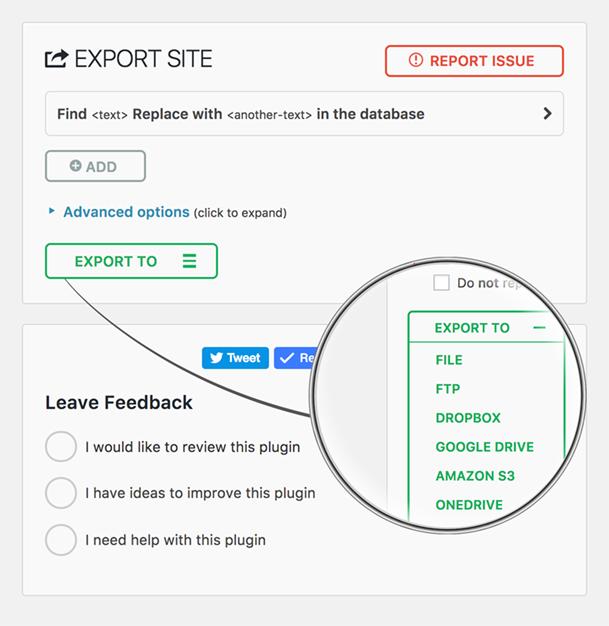
In your WordPress admin panel, go to All-In-One WP Migration > Export. You can choose how to export your data—whether to a file or cloud storage services like Google Drive or Dropbox.
Step 3: Download the Exported File
Once the export completes, download the file, which contains your entire website in a compressed format.
Step 4: Import to HosterSale
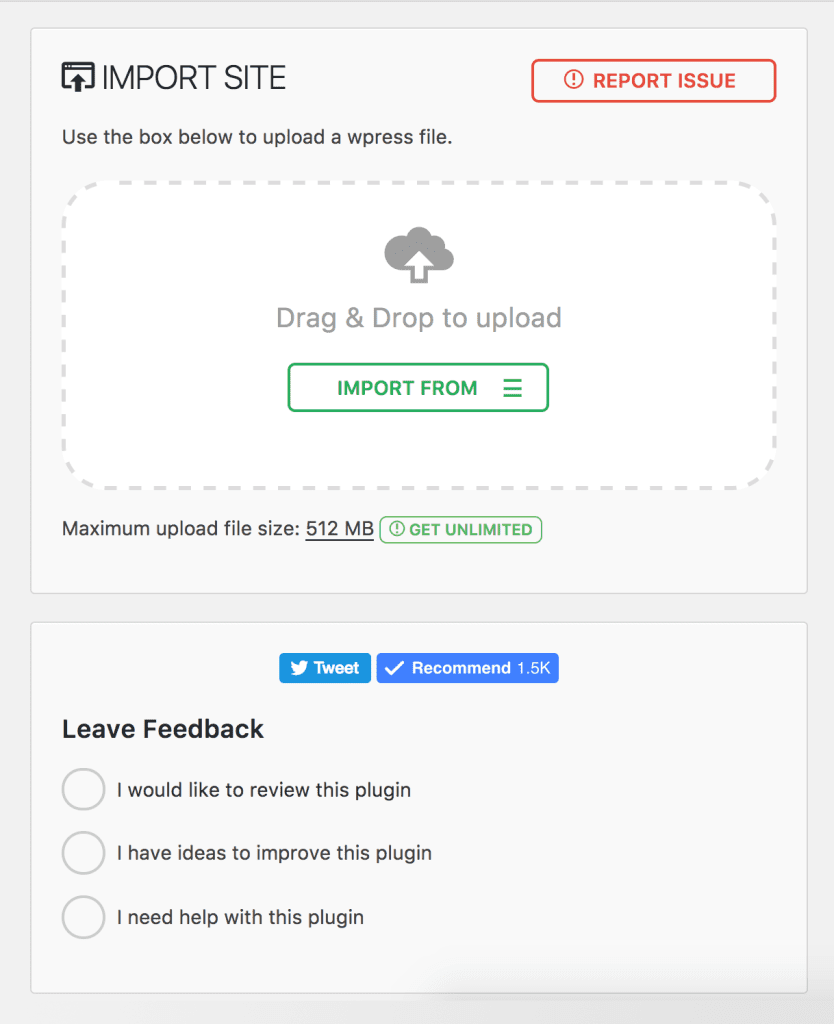
On your HosterSale server, install a fresh WordPress installation. Navigate to the All-In-One WP Migration > Import section, upload the exported file, and the plugin will automatically rebuild your site.
Step 5: Update Site Links
Ensure you update any site links or permalinks to avoid broken links. The plugin automatically adjusts URLs, but a quick test will confirm everything is working perfectly.
Advanced Features: Unlocking More with All-In-One WP Migration
For users looking for even more advanced migration capabilities, All-In-One WP Migration offers additional features such as:
- Scheduled Backups: Automate the backup process to ensure you never lose important data.
- Cloud Storage Integration: Easily export backups to cloud services like Google Drive, Dropbox, and OneDrive for offsite storage.
Common Issues and Quick Fixes
Though All-In-One WP Migration is incredibly reliable, users may occasionally face issues. Here are a few common problems and their solutions:
- File Size Limits: If you hit file size limits, upgrading to the premium version removes these restrictions.
- Timeout Errors: Increase your server’s PHP timeout limit via your HosterSale control panel to avoid incomplete migrations.
- Import Stalling: If your import stalls, try re-uploading the file and ensure your internet connection is stable.
Post-Migration Checklist: Final Steps for a Perfect Transfer
Before you celebrate your successful migration, be sure to run through these final checks:
- Test Functionality: Ensure that all pages, plugins, and features are working correctly.
- SEO Optimization: Check your site’s SEO settings to ensure your rankings won’t be affected post-migration.
- Security Settings: Confirm that SSL certificates, firewalls, and security plugins are activated to keep your site protected on HosterSale servers.
Conclusion: Why HosterSale Recommends All-In-One WP Migration
At HosterSale, we understand that migrating a website can be stressful. That’s why we recommend using All-In-One WP Migration—a tool that guarantees a smooth, stress-free process. Whether you’re a beginner or an expert, this plugin is your best friend when moving to our high-performance hosting environment.
Ready to make the switch? Explore our WordPress hosting services today and start your migration journey with ease.
FAQs:
Q: Can I use All-In-One WP Migration with HosterSale’s hosting services?
A: Absolutely! The plugin is fully compatible with all HosterSale WordPress hosting plans.
Q: How long does the migration process take?
A: The time depends on the size of your site, but with HosterSale’s fast servers, the process is typically completed within minutes.
Q: Do I need to change my domain settings after migration?
A: Yes, if your domain has changed, you’ll need to update the URLs. The plugin automatically adjusts most links, but a quick review is recommended.
