

 PKR
PKR 
Are you trying to connect your domain email to a third-party provider like Google Workspace, GoDaddy Email, Zoho Mail, or Microsoft 365? You’ll need to configure your MX records and sometimes TXT records in your domain’s DNS settings.
In this complete guide, we’ll show you how to set MX records in cPanel, how to configure SPF (TXT) records when required, and how to connect your domain email with Google, GoDaddy, Zoho, and more.
This guide is specially prepared for users hosting their websites with HosterSale.
What Are MX Records and Why Are They Important?
MX (Mail Exchange) records tell mail servers where to deliver emails sent to your domain. Without properly configured MX records, emails will not reach your inbox.
In many cases, third-party providers like Google Workspace or Zoho Mail also require additional TXT (SPF) records to verify your domain and improve email delivery.
How to Set MX Records in cPanel
Follow these steps if your domain is hosted on HosterSale or any cPanel-based hosting provider.
Step 1: Log in to cPanel
You can access cPanel by visiting:yourdomain.com/cpanel
Enter your login details provided by HosterSale.
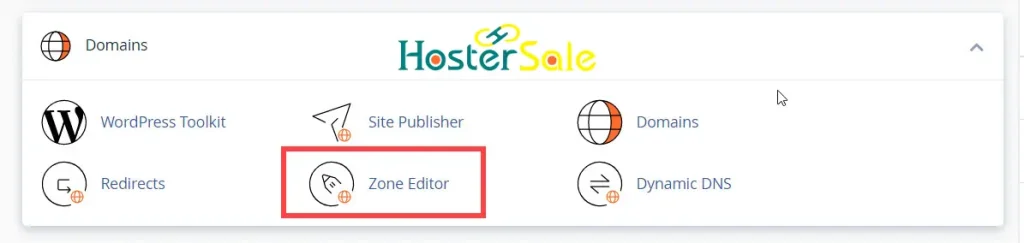
Step 2: Go to Zone Editor
Once inside cPanel, scroll to the Domains section and click on Zone Editor.
Step 3: Manage Your Domain
Find your domain and click on Manage to open the DNS record settings.
Step 4: Remove Old MX Records
Delete any existing MX records that are not related to your new email provider to prevent conflicts.
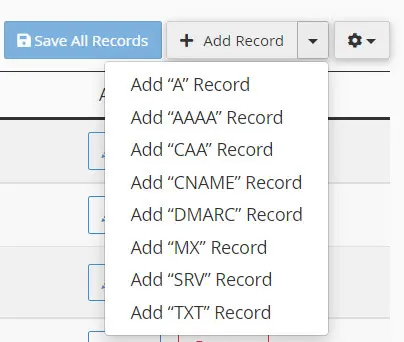
Step 5: Add New MX Records
Click Add Record, select MX, and input the values provided by your email provider.
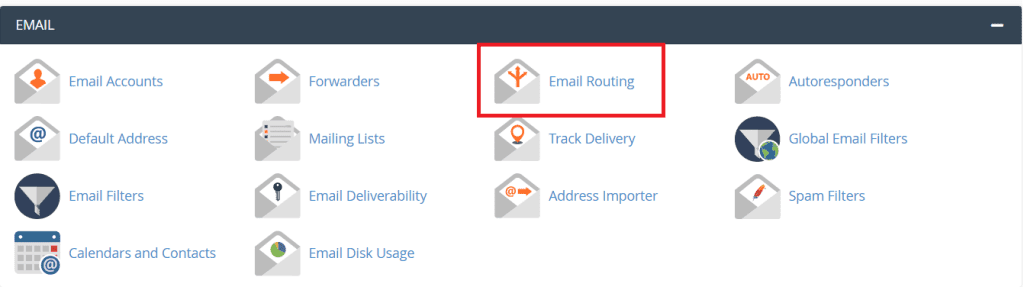
Step 6: Set Email Routing
Go back to the Email section in cPanel and click Email Routing. Choose Remote Mail Exchanger to ensure your email is routed to the external provider, not the local server.
MX and SPF Records for Popular Email Providers
Google Workspace (Gmail)
MX Records:
| Priority | Mail Server |
|---|---|
| 1 | ASPMX.L.GOOGLE.COM |
| 5 | ALT1.ASPMX.L.GOOGLE.COM |
| 5 | ALT2.ASPMX.L.GOOGLE.COM |
| 10 | ALT3.ASPMX.L.GOOGLE.COM |
| 10 | ALT4.ASPMX.L.GOOGLE.COM |
Required SPF (TXT) Record:
v=spf1 include:_spf.google.com ~all
Add this as a TXT record under your domain in the Zone Editor.
GoDaddy Email
MX Records:
| Priority | Mail Server |
|---|---|
| 0 | smtp.secureserver.net |
| 10 | mailstore1.secureserver.net |
Required SPF (TXT) Record:
v=spf1 include:secureserver.net ~all
Make sure to add this as a TXT record in cPanel.
Zoho Mail
MX Records:
| Priority | Mail Server |
|---|---|
| 10 | mx.zoho.com |
| 20 | mx2.zoho.com |
| 50 | mx3.zoho.com |
Required SPF (TXT) Record:
v=spf1 include:zoho.com ~all
This TXT record ensures Zoho’s mail servers are authorized to send email on behalf of your domain.
Microsoft 365 (Outlook)
MX Record:
- Host:
@ - Priority: 0
- Destination:
yourdomain-com.mail.protection.outlook.com
(Replaceyourdomain-comwith your actual domain)
Required SPF (TXT) Record:
v=spf1 include:spf.protection.outlook.com ~all
Common Mistakes to Avoid
- Not deleting the default MX records before adding new ones.
- Forgetting to switch the Email Routing to “Remote Mail Exchanger”.
- Skipping the SPF TXT record setup, which can result in email delivery issues or being marked as spam.
- Entering incorrect priority values or mail server addresses.
Why Use Third-Party Email Services?
Third-party email services provide better reliability, spam protection, and branding for your business. When combined with a reliable hosting provider like HosterSale, you get full control over both your website and email setup.
Related Posts from HosterSale Blog
- Setting Up a Professional Email Address Using cPanel
- How to Set Up Cron Jobs: A Complete Guide for cPanel Users
- Top 10 Web Hosting Features to Look for in 2024
Conclusion
Setting MX and SPF records in cPanel is essential for connecting third-party email services like Google, GoDaddy, Zoho, and Microsoft 365. With the right DNS configurations and reliable hosting from HosterSale, your email system will be up and running smoothly.
Need professional email and fast hosting in one place? Explore our plans here:
HosterSale Web Hosting
Business Hosting with cPanel
